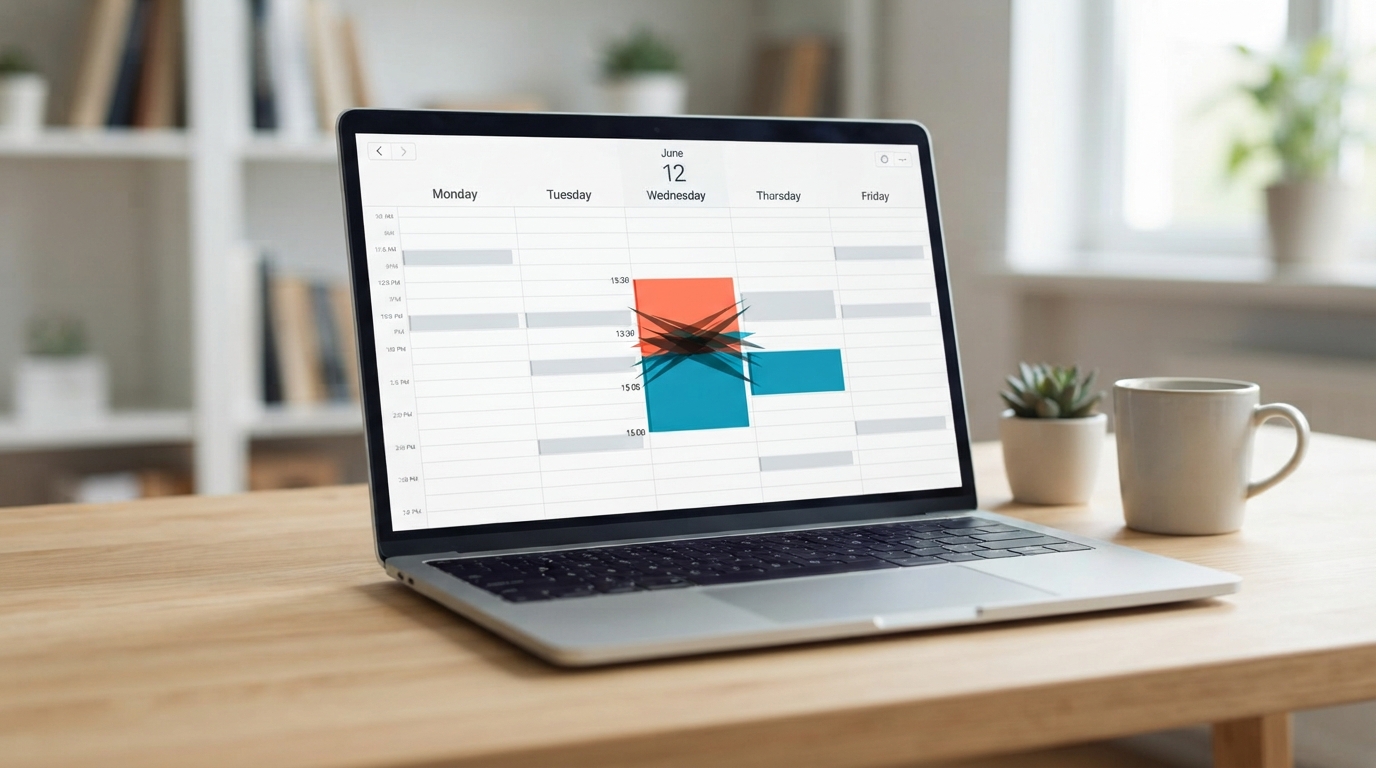
A double booking almost always traces back to the same root cause: your availability lives in more than one place, and something isn’t updating the others in real time. Whether that’s a shared vehicle, a second calendar, or a walk-in your software doesn’t know about, the fix is the same category of solution even if the specific setup differs. Here’s how to actually stop it.
Why Double Bookings Actually Happen
Three patterns account for most cases: managing availability across separate calendars (a personal calendar, a work calendar, a shared team calendar) that don’t sync with each other in real time; relying on manual entry or back-and-forth email instead of a system that blocks time automatically; and resource conflicts that a calendar-only view doesn’t catch — like a vehicle, room, or piece of equipment being double-booked even though the staff member’s calendar looks clear. Each needs a slightly different fix.
Fix 1: Set Up Real Two-Way Calendar Sync
One-way sync (where your booking tool sees your calendar, but changes made directly in your calendar app don’t reflect back) is a common source of silent conflicts. Real two-way sync means an event added anywhere — your booking tool, your personal calendar app, a shared team calendar — blocks that time everywhere else within seconds, not minutes. Most tools compared on this site (Setmore, Acuity, Calendly, Cal.com) support this with Google and Outlook; confirm iCloud support specifically if your team uses Apple devices, since some tools have had inconsistent support there.
Fix 2: Add Buffer Time Between Appointments
A slot that ends exactly when the next one begins leaves zero margin for a session running slightly long, client note-taking, or simple travel time between rooms. Buffer time (even 5-10 minutes) absorbs that natural variance before it cascades into an actual overlap. This matters more for businesses with variable service length — a color treatment running over, a consultation that goes long — than for perfectly uniform, fixed-length appointments.
Fix 3: Treat Shared Resources as Bookable, Not Just Staff
If your business shares a vehicle, room, or piece of equipment across multiple staff members, a calendar that only tracks people’s availability will happily book two people into the same resource at the same time. Setting up the resource itself as a bookable entity (supported natively on Bookeo, and via workarounds on Setmore) — not just the staff member — is the direct fix, covered in more detail in our guides on driving schools and mobile detailing, both businesses where this specific problem is common.
Fix 4: Use Approval-Based Booking for Edge Cases
For appointment types where a conflict is more likely — very long sessions, multi-resource bookings, or high-value slots — requiring manual confirmation before a booking is finalized (rather than instant auto-confirmation) adds a checkpoint that catches conflicts a purely automated system might miss. This trades some booking friction for conflict protection, worth it selectively rather than for every appointment type.
Fix 5: Give Each Staff Member Their Own Booking Link
A single shared booking page for a multi-staff business is a common, avoidable source of conflicts — clients unintentionally book whichever slot looks open without the system routing correctly to a specific person’s actual calendar. Dedicated individual booking links (standard on Calendly, Acuity, and Setmore) route bookings directly to the right calendar from the start.
How to Audit Your Current Setup for Hidden Sync Gaps
Before assuming your scheduling tool is at fault, it’s worth running a simple audit. Book a test appointment through your public booking link, then check three things: does it appear correctly in every calendar app you or your staff use day-to-day (not just the scheduling tool’s dashboard)? Does blocking time directly in your personal calendar app (not through the booking tool) correctly prevent new bookings during that window? And does a change made on a mobile device sync as reliably as one made on desktop? Many double-booking problems trace back to one of these three gaps rather than a fundamental flaw in the scheduling tool itself — a staff member who blocks vacation time in their phone’s calendar app, assuming it syncs, when in fact the connection is one-way or delayed.
If the audit reveals a genuine sync delay (events taking minutes rather than seconds to reflect across calendars), that’s worth escalating to the tool’s support team directly — persistent sync delays are usually a known, fixable configuration issue rather than something to work around permanently.
Frequently Asked Questions
Is calendar sharing the same as two-way sync?
No — a shared or subscribed calendar can lag or fail to update in real time, especially across different platforms (Google to Outlook, for example). Two-way sync is generally more reliable specifically because it pushes changes actively rather than relying on the other calendar checking for updates.
What’s the ideal buffer time between appointments?
It depends on your service — a quick consultation may need only 5 minutes, while a service with significant variability (a color treatment, a detailed consultation) may need 15-20 minutes to reliably absorb overruns.
Can double bookings happen even with a good scheduling tool?
Yes, if the tool isn’t configured for your actual constraints — most commonly, if shared resources (vehicles, rooms, equipment) aren’t set up as bookable entities alongside staff calendars.
Is it ever a good idea to intentionally double-book?
Some businesses (medical practices, certain service industries) intentionally overbook slightly to account for predictable no-show rates, but this is a deliberate strategy with its own risks, not a substitute for fixing accidental double bookings caused by sync or resource-tracking gaps.
See related guides: how to reduce no-shows and driving schools (a business where resource conflicts are especially common).